
Appearance
Show Rankings
Track Your Keyword Rankings Across All Platforms
Show Rankings lets you monitor how your podcast ranks for specific keywords across Apple Podcasts, Spotify, Amazon Music, and YouTube Music. Add keywords to track, organize them into groups, and watch your rankings improve over time.
If you've searched for "Platform Rankings," this is the same feature—that's the page's browser tab title. Throughout PodSEO it's called Show Rankings.
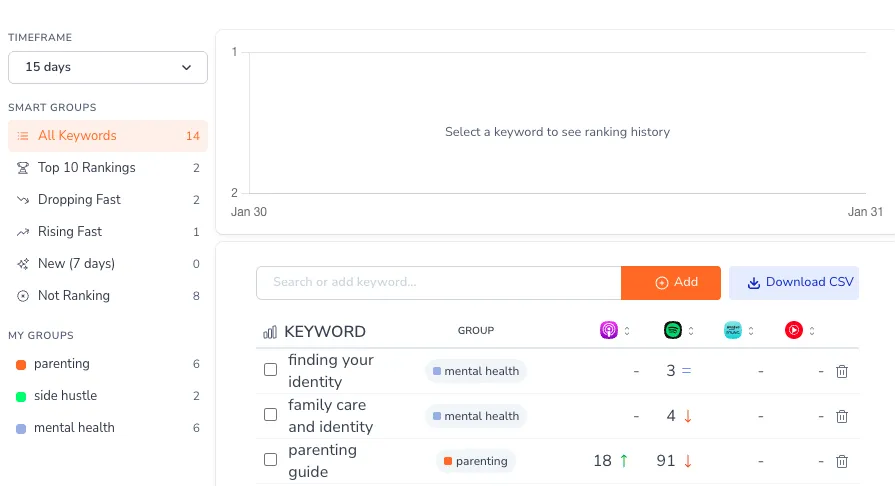
What You'll See
Multi-Platform Ranking Table
The main view shows your tracked keywords with rankings for each platform:
- Keyword - The search term you're tracking
- Group - The custom groups the keyword belongs to (click to assign groups)
- Apple Podcasts (AP) - Current rank and change indicator
- Spotify (SP) - Current rank and change indicator
- Amazon Music (AM) - Current rank and change indicator
- YouTube Music (YM) - Current rank and change indicator
Each platform column shows:
- Your current position (e.g., #8)
- Change since last check (e.g., +3 or -2)
- Blank if not ranking for that keyword
Ranking Chart
Above the table, a line chart shows the ranking history of one keyword at a time. Select a keyword in the table and the chart plots its position on all four platforms—Apple Podcasts, Spotify, Amazon Music, and YouTube Music—as separate lines over your chosen timeframe, so you can compare platforms side by side.
Smart Groups
Quick filters to find keywords by performance:
- All Keywords - Your complete tracking list
- Top 10 Rankings - Keywords where you rank in the top 10
- Rising Fast - Keywords with improving rankings
- Dropping Fast - Keywords losing positions
- New (7 days) - Recently added keywords
- Not Ranking - Keywords where you don't appear in results
Custom Groups
Create your own keyword groups to organize tracking by topic, campaign, or priority. Custom groups appear in the sidebar alongside Smart Groups, each with a color dot for quick identification.
Managing Your Keywords
Adding Keywords
Add new keywords to track using the add form. Consider tracking:
- Your primary positioning keywords
- Competitor keywords you want to rank for
- Topic keywords in your niche
- Branded terms (your podcast name, host names)
Creating and Using Groups
Groups are created and assigned from the Group menu on any keyword row:
- Click the group cell on a keyword row to open its group menu
- Under Create new group, pick a color and type a group name
- Click + (or press Enter) to create the group—the keyword is added to it, and the group appears in your sidebar
To assign a keyword to existing groups, open the same menu and select which groups the keyword belongs to. A keyword can belong to multiple groups.
Once created, click any group in the sidebar (desktop) or the group chips (mobile) to filter the table and chart to just those keywords.
Timeframe Selection
Choose how much history to display:
- 15 days - Recent performance (the default)
- 90 days - Quarterly trends
Exporting Data
Click Download CSV to export your keyword data for external analysis or reporting.
Over Your Keyword Limit
If you're tracking more keywords than your plan allows (for example, after changing plans), a warning appears above the table: "You're tracking more keywords than your plan allows." Upgrade to raise your keyword limit and get complete data, or remove keywords you no longer need.
Understanding Your Rankings
Reading the Delta
The change indicator shows movement since the previous data point:
- Green (+) - Ranking improved (moved up)
- Red (-) - Ranking dropped (moved down)
- No indicator - Position unchanged
Platform Differences
Rankings often vary by platform:
- A keyword ranking #5 on Apple might be #15 on Spotify
- Some platforms may not rank your podcast for certain keywords
- Focus optimization where you have the most potential
Country Differences
The Show Rankings table shows positions as a listener in the United States sees them. A keyword can rank very differently in other markets; to compare countries, add search countries for the podcast in Settings → Podcasts (paid plans, with a per-podcast allowance of additional countries) and use the country selector in Keyword Tracker — that's where per-country rankings are shown. Adding countries doesn't change this table.
Smart Group Insights
Use smart groups to prioritize efforts:
- Top 10 - Maintain and protect these positions
- Rising Fast - Momentum to capitalize on
- Dropping Fast - May need attention
- Not Ranking - Opportunities or unrealistic targets
Strategic Use
Prioritizing Optimization
Focus energy where it matters:
- Near top 10 - Small improvements here have big impact
- Rising keywords - Ride momentum with content reinforcement
- Dropping keywords - Investigate causes before they fall further
Correlating with Content
Connect rankings to content:
- Did a specific episode boost certain keywords?
- Do ranking changes correlate with publishing frequency?
- Which topics drive the best keyword performance?
Competitive Tracking
Add competitor-relevant keywords to understand:
- Keywords where competitors rank but you don't
- Gaps in your keyword coverage
- Opportunities to differentiate
Integration with Other Features
- Keyword Strategy - Keywords from your strategy appear here
- Show Visibility - Discover keywords you rank for organically
- Keyword Tracker - Alternative view focused on individual keyword history
Availability
Show Rankings is available on paid plans. Free users see a limited preview with sample keywords.
Related Features: Use Keyword Strategy to build your keyword plan, Show Visibility to discover organic rankings, and Episode Rankings for episode-level tracking.