
Appearance
Social Publishing
Turn Episodes into Short Video Clips and Publish Them
Social Publishing helps you repurpose your podcast episodes into short, vertical video clips — the kind of reels that perform well on social platforms — and publish them where new listeners are most likely to discover you. Instead of editing video by hand, you let PodSEO find the strongest moments in an episode, turn them into ready-to-share clips, and post them directly to your connected social accounts.
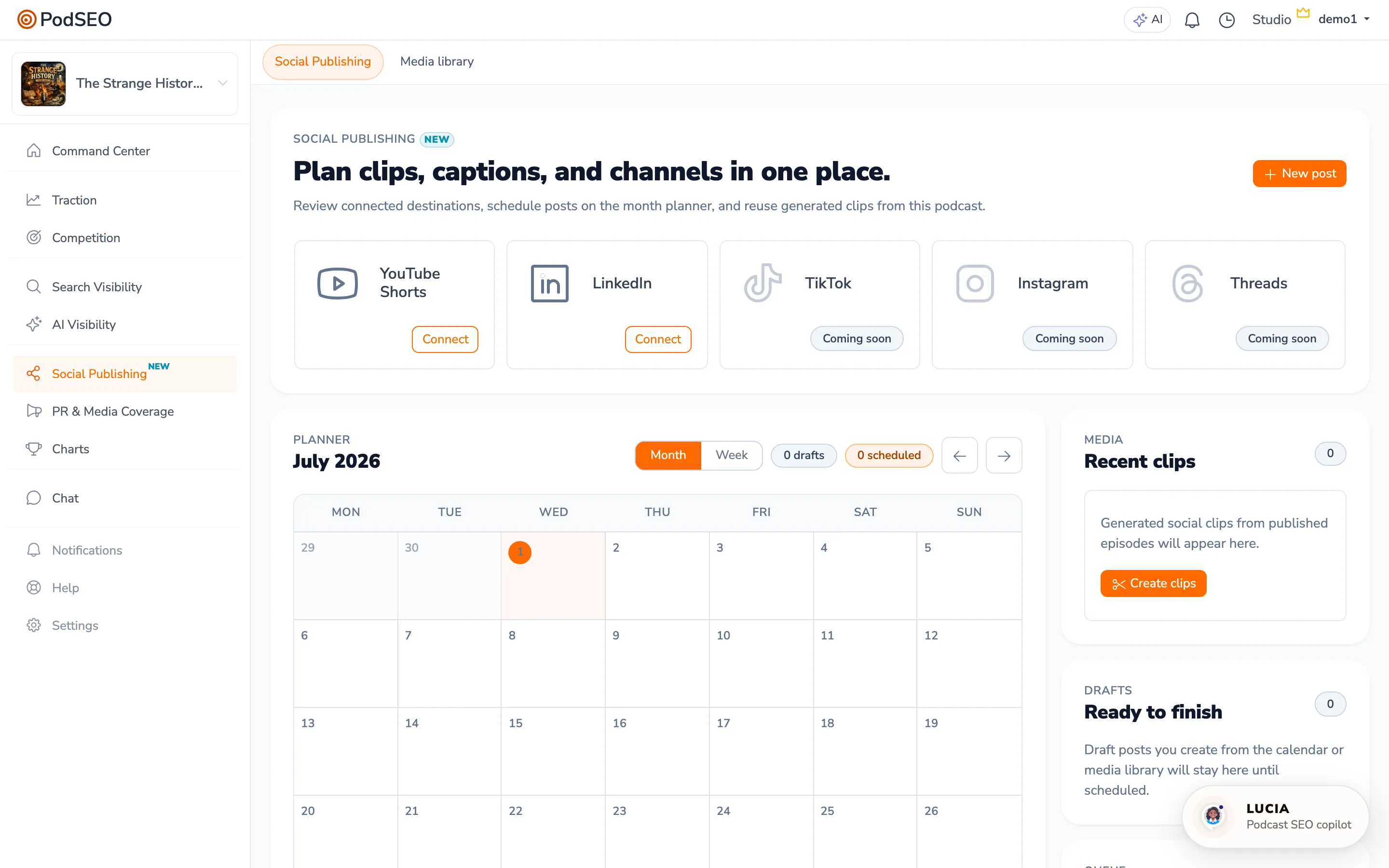
To access: Click Social Publishing in the sidebar. You can also reach it from the Planner — the Social Publishing button in the Planner's view switcher opens the same page.
Social Publishing has three tabs:
- Social Publishing — Your social calendar, connected accounts, Autopilot, and recent posts
- Create — Create new clips from your episodes and follow their progress as highlights and videos are generated
- Media library — Manage your finished clips and reusable media (including custom backgrounds on paid plans), and turn finished clips into social posts
Why Social Publishing Matters
Audio alone limits how far an episode can travel. Short video clips give your best moments a second life on platforms built for discovery, helping you:
- Reach new listeners who find you through video feeds rather than podcast apps
- Promote new episodes with shareable highlights instead of plain links
- Stay consistent on social without spending hours on editing
- Drive traffic back to your show from the platforms your audience already uses
Plan clips, captions, and channels in one place, then schedule everything from a single calendar.
How It Works
Social Publishing follows a simple path: find the best moments in an episode, turn them into a video clip, then write a caption and publish the clip to your chosen platforms.
Step 1: Find Social Clip Highlights
Start from a published episode. PodSEO reviews the episode and selects the three best moments for social clips — the segments most likely to capture attention. Before highlights are generated, you'll confirm that you have the rights or permission to create clips from the episode.
Step 2: Review the Moments and Generate Video
Once the highlights are ready, review the selected moments and choose which ones to turn into finished videos. For each clip you can adjust how the video looks — choosing a background, deciding whether to show your show cover, and toggling visual touches like a waveform — before generating the final vertical video. Paid plans can also upload their own custom backgrounds for clips. If a result isn't quite right, you can generate it again with different settings.
Step 3: Create a Social Post
With a finished clip in hand, create a social post:
- Attach your clip — A completed clip is required before a post can be scheduled or published.
- Write a caption — Add the copy you want to appear with the post. PodSEO adds #Shorts to YouTube captions automatically if it isn't already there, and on free plans, Instagram captions automatically credit @podseo.app.
- Choose destinations — Select which connected platforms the clip should go to.
- Publish or schedule — Publish now, or pick a date and time to post later.
You can also save a post as a draft while a clip is still being made, then come back to attach the clip and finish scheduling.
Credits: How Clip Creation Is Paid For
Social Publishing runs on credits. Two actions use them:
- Analyzing an episode to find its best moments — 5 credits per episode
- Generating a clip from one of those moments — 5 credits per clip
So a typical episode — one analysis plus three clips — uses 20 credits. Regenerating a clip with a different look counts as a new clip.
Monthly allowance. Every plan includes a monthly credit allowance that refreshes at the start of each calendar month: Free 10, Podcaster 50, Producer 250, Agency 750, Enterprise 1,500. Unused monthly credits don't roll over.
Buying more. If you need more than your allowance, click Add credits (from the credit indicator or Settings → Credits) to buy a one-time pack of 50, 100, or 250 credits, or upgrade your plan for a larger monthly allowance. Purchased credits — along with credits you earn by completing the setup steps in the Command Center — don't expire with the monthly reset and are used after your monthly credits run out.
Where to see your balance. Your available credits appear in the header of the app; hover or tap the indicator for a breakdown. Settings → Credits shows the current period's available, reserved, monthly, and Purchased + earned credits, plus a full history of every credit added, reserved, spent, refunded, or adjusted.
When credits run out. You can still review moments you've already analyzed, edit captions, schedule posts, and publish clips that are already made — publishing itself doesn't use credits. Analyzing a new episode or generating a new clip will ask you to add credits or wait for the next monthly refresh. If Autopilot is on, it turns itself off when there aren't enough credits for its next action and emails you so you can top up and re-enable it.
Publishing Limits
Separately from credits, each plan has a cap on how many destinations you can publish to per day, per week, and per month (a post sent to two platforms counts as two destinations), plus a short-burst limit to prevent accidental floods. Free accounts have the smallest caps and paid plans raise them progressively. The app tells you when a publish would exceed a limit, and scheduled posts count toward the window in which they're due to go out.
Autopilot
The Autopilot panel on the Social Publishing page does the manual workflow for you:
- New episodes. When PodSEO detects a newly published episode, Autopilot analyzes it, creates up to three clips, and schedules them across the following week to the destinations you've selected — using your credits (typically 20 per episode). Autopilot picks posting times from recommended publishing windows for the weekday and your chosen timezone, skipping slots you've already scheduled; check the calendar to see exactly when each post will go out.
- Destinations. Tick which connected accounts Autopilot may post to. You need at least one connected destination before you can enable it.
- Timezone. Autopilot picks posting times in the timezone shown in the panel; click Change to set a different one. Existing scheduled posts keep their times.
- Keep posting when quiet. Optionally, when no new-episode posts are scheduled, Autopilot schedules one clip from your back catalog every 3, 7, or 14 days or every 4 weeks. Each catalog post uses credits too (analysis plus one clip if the episode hasn't been analyzed yet).
- Cost estimate. The panel shows the credits per new episode and an estimated monthly total based on your publishing frequency and cadence, so you can see whether your allowance covers it before saving.
- Visibility. Autopilot posts are public by default, using each platform's normal posting settings.
You can edit draft and scheduled posts before they begin publishing. Check their current status on the calendar. Turning Autopilot off stops future automatic work; review existing scheduled posts separately if you want to cancel them.
Supported Platforms
Connect destinations from the Social Publishing page: YouTube Shorts, LinkedIn, Bluesky, Instagram, Threads, Facebook, and TikTok. TikTok requires a paid plan and a clip without a watermark; other destinations remain subject to your account permissions and publishing limits.
Choose the destination card, complete the platform's connection flow, and select that account when creating a post or configuring Autopilot. For YouTube, Google shows an account chooser: pick the Google account (or Brand Account) that owns your channel. If the account you pick has no YouTube channel, PodSEO tells you so and you can connect again with the right account, or create a channel at youtube.com first. If the card asks you to reconnect, renew access before scheduling more posts. Connecting an account does not publish anything by itself.
If a post fails, open its status and read the destination-specific message. Check the connection, media requirements, credit balance for unfinished clips, and publishing limits before retrying. For a post sent to multiple destinations, check which ones succeeded so you do not publish duplicates. Agency approvals must also be satisfied where a review is required.
The Social Calendar
Scheduled and draft posts appear on the Social Publishing calendar, which you can view by month or by week. This gives you a clear picture of what's going out and when, so you can keep a steady cadence of social content alongside your episode publishing schedule. Recent clips and recently published posts are also surfaced so you can reuse or follow up on them quickly.
How to Use Social Publishing Effectively
Lead With Your Strongest Moments
Let PodSEO surface the highlights, then pick the clips that best represent what makes your show worth listening to. A single compelling moment often travels further than a longer, less focused segment.
Tailor Captions to Each Audience
Write captions that give viewers a reason to watch and a clear next step — like listening to the full episode. A strong caption paired with a great clip is what turns a casual viewer into a new listener.
Build a Posting Rhythm
Use the calendar to schedule clips in advance rather than posting sporadically. Consistency helps your content perform better over time and keeps your show visible between episodes.
Repurpose Across Platforms
The same clip can reach different audiences on different platforms. Publishing one strong clip to several connected destinations is an efficient way to maximize the reach of every episode.
Integration with Other Features
- Planner — A Social Publishing button in the Planner's view switcher links straight to this page, so clip creation fits naturally into your episode workflow
- Pulse — Timely episodes inspired by trending topics make especially shareable clips
- YouTube Insights — Your YouTube connection also powers YouTube Insights: activate it to see the searches that bring viewers to your channel and get keyword suggestions for your video titles. Disconnecting the YouTube account here also stops YouTube Insights and deletes its data
Availability
Social Publishing is available to all accounts. Free accounts receive a small monthly credit allowance and lower publishing caps, and finished videos carry a PodSEO watermark. Free accounts' Instagram captions also credit @podseo.app. Paid plans remove the watermark and the caption credit, include a larger monthly credit allowance and higher publishing caps, support custom clip backgrounds, and can buy extra credit packs. TikTok publishing requires a paid plan and unwatermarked clips.
Pro Tips
- Confirm you have the rights to an episode's audio before creating clips from it
- Generate a clip again with a different background or style if the first version doesn't feel on-brand
- Save drafts early — you can write captions and choose destinations even before a clip is fully ready
- Schedule clips around your episode releases so each new episode gets a promotional push
- Check your credit balance before analyzing a long back catalog — each episode costs credits to analyze even if you only generate one clip
- If you enable Autopilot's "Keep posting when quiet" cadence, use the panel's monthly estimate to make sure your allowance covers both new episodes and catalog posts
Social Publishing turns the work you've already done into shareable video, helping every episode reach beyond your podcast feed and bring new listeners back to your show.