
Connections
Manage connected podcast accounts and the AI assistants that can read your PodSEO data from Settings → Connections. Use this page when you need to check access, reconnect an account, or disconnect the right service for the right show.
Find the account that needs attention
- Choose the podcast in the filter, then select Needs attention.
- Expand the provider's Details to check its identity, status, and next action. For social providers, open Accounts & actions first.
- Before removing access, read Disconnect… or Cancel request…. Choose Keep connection or Keep request to leave it unchanged.
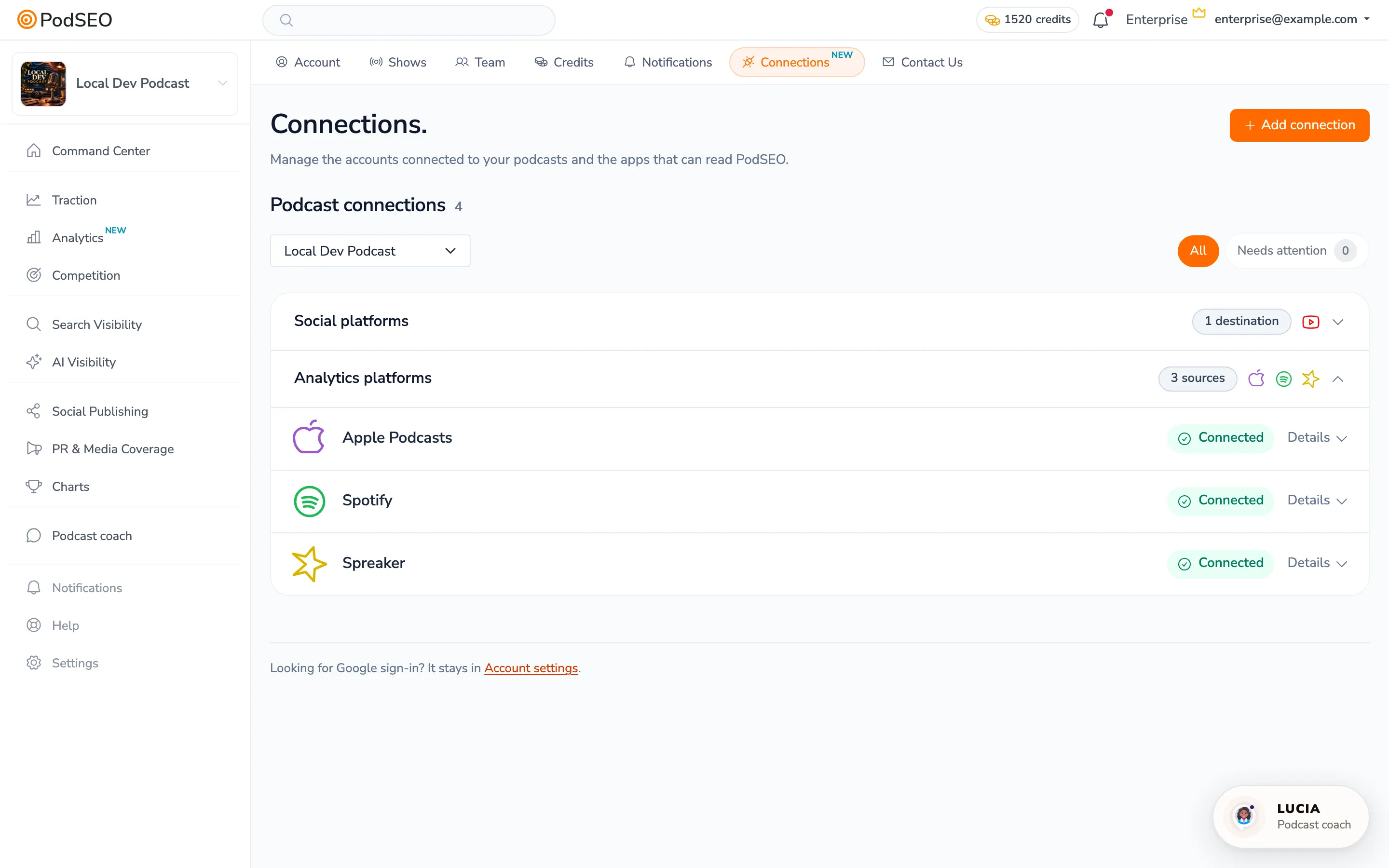
Check both the podcast and connected identity before changing access. A social platform can have several connected accounts. The walkthrough leaves its example connections in place.
Add a connection
- Click Add connection.
- Choose AI assistant, or find your podcast under Podcast account.
- For that podcast, choose Social accounts to connect a publishing destination, or Analytics for the source's setup guide.
- Complete the provider's sign-in or invitation steps, then check the status back in PodSEO.
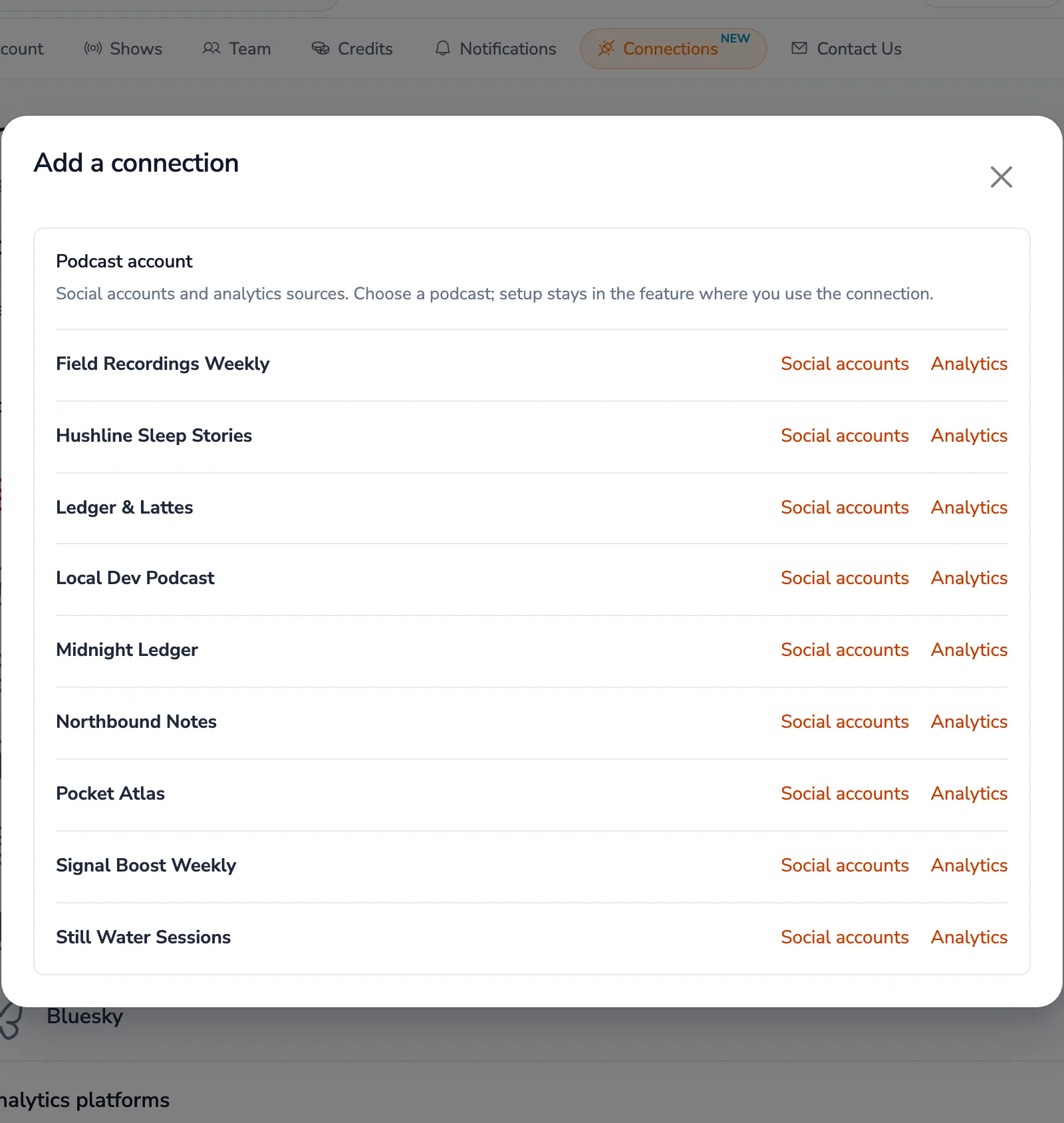
Analytics setup stays in Analytics, where you also read its reports. Social destinations are used by Social Publishing. Google sign-in for your PodSEO login is separate and stays in Settings → Account.
Reconnect or disconnect
A connection that needs attention offers the relevant next step. Open it, follow the instructions, and verify the correct account is connected before relying on future updates or scheduled posts.
To disconnect, expand the account and choose Disconnect…. For an unfinished request, the action can be Cancel request…. Read the confirmation: it explains what will stop working and whether you must also remove access on the provider's website.
Disconnecting an analytics source stops new imports; disconnecting a social destination can prevent scheduled posts from publishing there. Removing a connection does not cancel your PodSEO subscription. The confirmation and source guide explain whether saved numbers are retained or deleted.
AI assistants are personal
The AI assistants section lists the assistants you connected and the account each can read. Those authorizations belong to your login, while social and analytics accounts belong to the podcast workspace. Use Connect an AI assistant for the server URL and setup steps; see AI Connections.
Who can manage connections?
In a personal account, you manage your own podcast connections. In an organization, only Owners and Admins manage podcast connections. Other members can still manage their own AI assistant authorizations when the approved account's plan supports them.