
hopr.fm download analytics
hopr.fm measures requests that pass through your show's download prefix and separates counted downloads from requests excluded by its rules. Use the report to understand download trends, episode launches and unusual traffic. A counted download does not verify a human listener or a completed listen.
To access: choose your podcast → Analytics → hopr.fm. Reports are private to your account. If you see setup instructions, follow Set up the hopr.fm prefix. The prefix needs to be supported and published by your hosting platform.
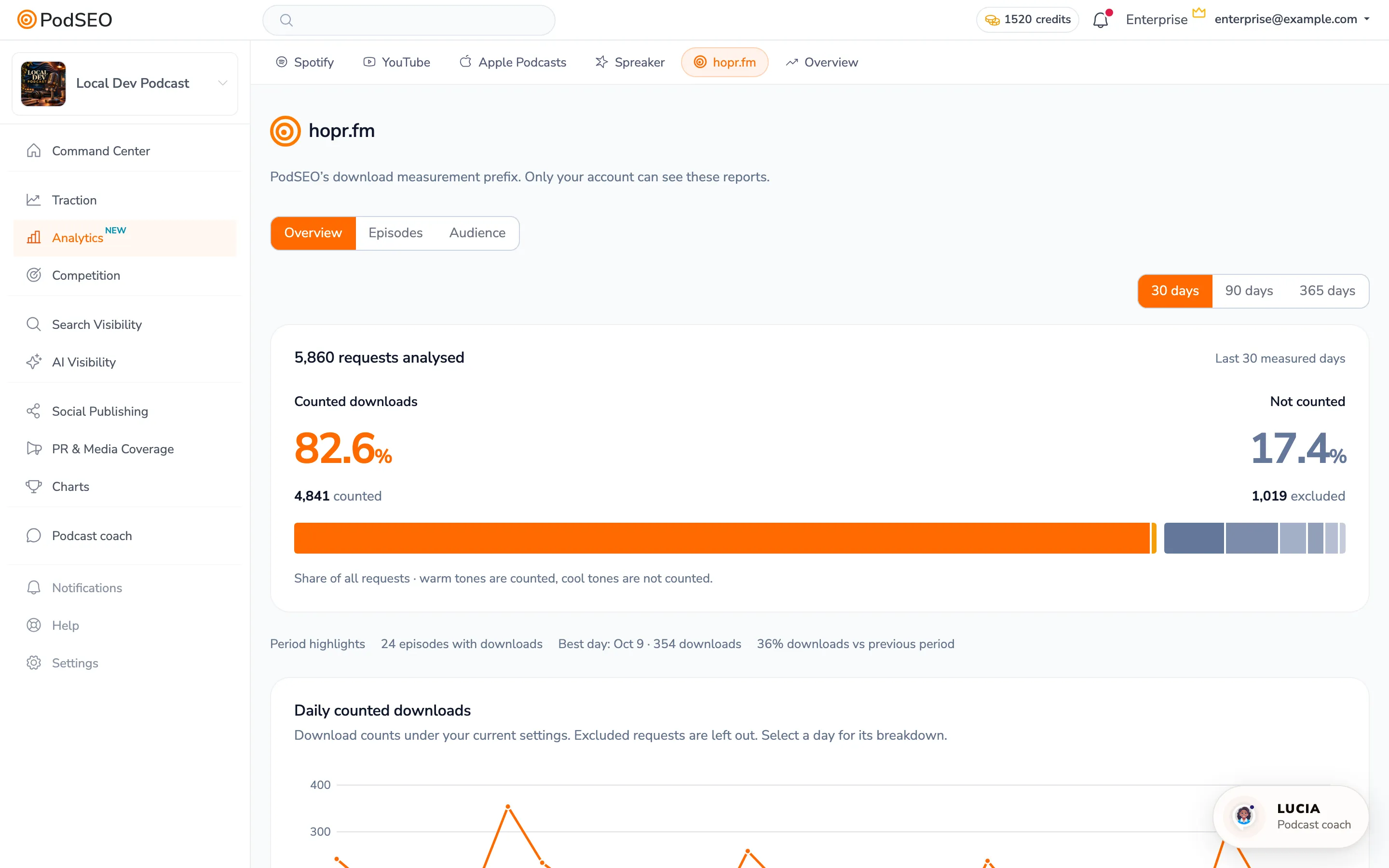
Read counted downloads and requests
In Overview, choose 30, 90 or 365 days. The request summary separates Counted downloads and Not counted as shares of requests analysed. Daily counted downloads shows the counted trend. Days use UTC, and today's data is partial.
hopr.fm counts at most one download for the same listener, episode and UTC day. A spike can include bulk downloads or other automated behaviour, so look at the breakdown before interpreting it as audience growth.
Investigate a day and an exclusion reason
- Select a day on Daily counted downloads, or choose it in Request breakdown.
- Read the updated request summary and What was left out for that day.
- Select a reason, such as bots or bulk catalog downloads, to highlight when it occurred in Daily requests · counted and excluded. Other requests fade while the scale stays the same.
- Use Show all reasons to clear that focus, then choose Whole period to return to the full range.
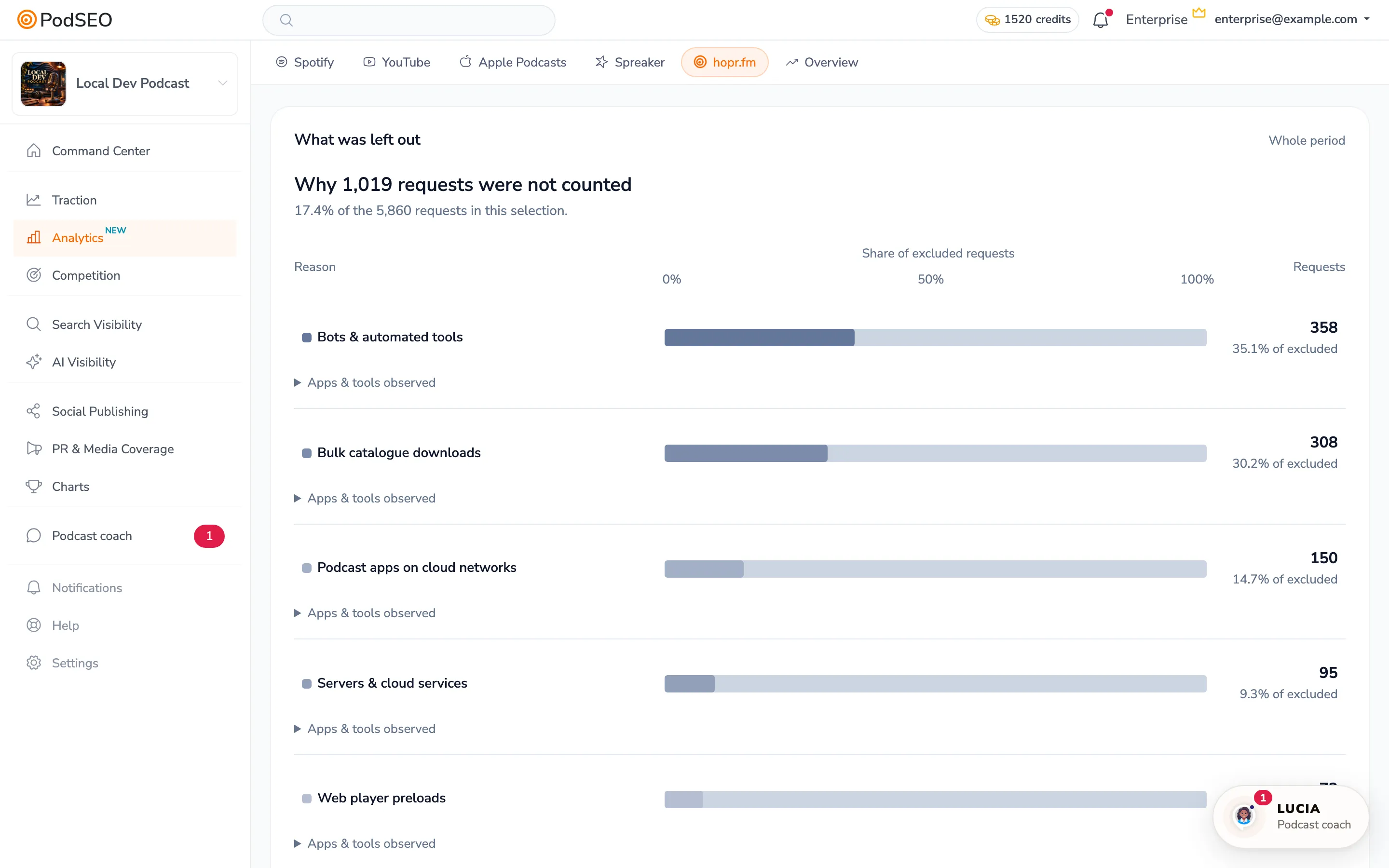
The bars in What was left out show each reason's share of excluded requests, not of all requests. Expand Apps & tools observed for available examples. Inside the … counted downloads explains the standard and unusual patterns that remain counted.
Show not counted changes the timeline display. It does not change your counting policy. The separate Count them / Stop counting them actions for podcast apps on cloud networks and Don't count / Count actions for unusual patterns do change which downloads are included. Read the notice before changing them; an unusual pattern alone is not proof of a bot. What we saw provides the available observations.
Compare episode launches
Open Episodes. Episode launches compares accumulated downloads over each episode's first 30 days. The newest episode is orange, and the dashed line is the typical episode. Compare the same age after publication; a three-day-old episode is not a complete month.
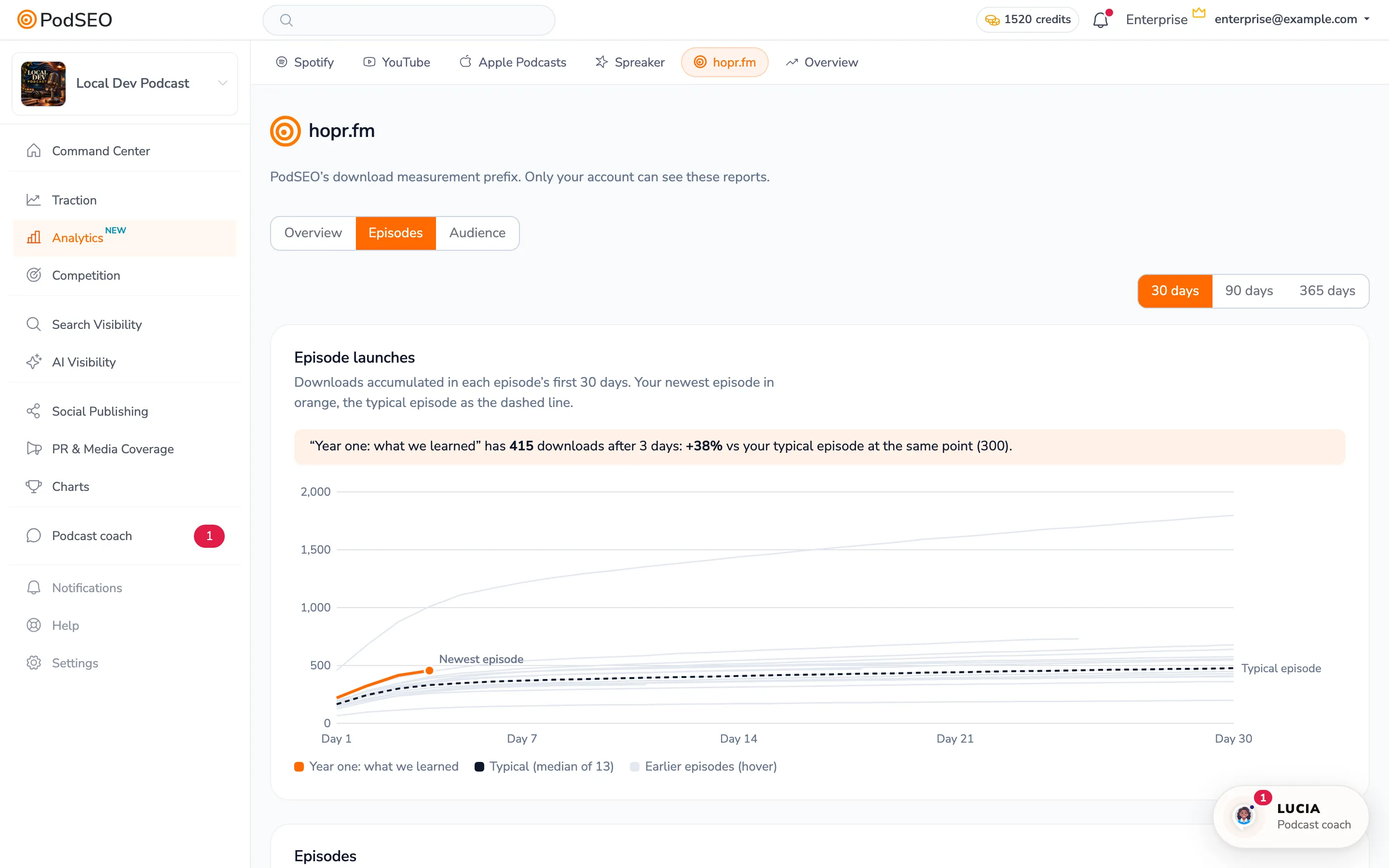
The list underneath shows downloads in the selected report period, which differs from a first-30-days launch curve. Older episodes without complete measurement from release cannot provide a complete launch comparison.
Explore Audience
Audience contains When your audience downloads, app shares over time, downloads by app and a country map.
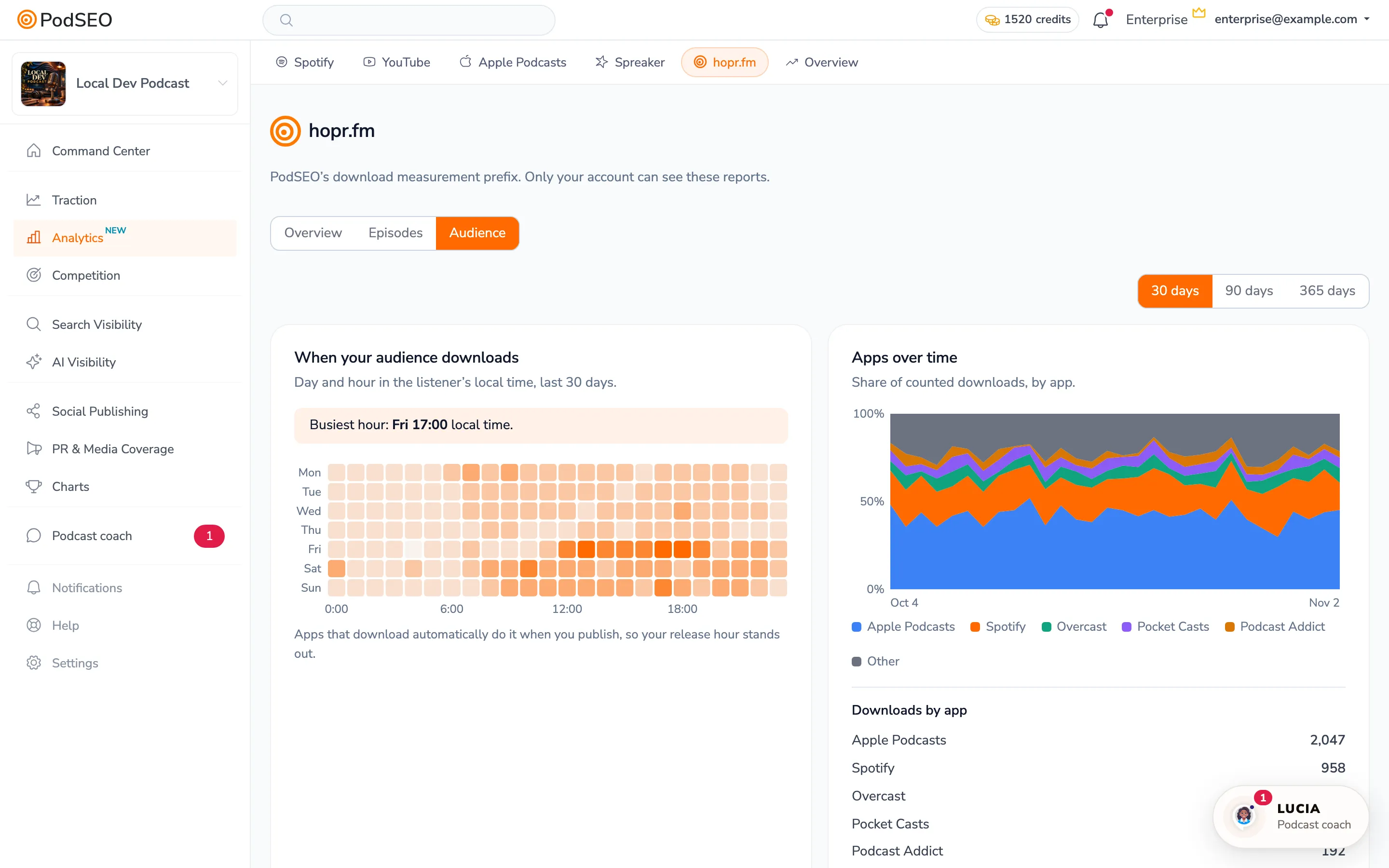
The day/hour view uses the listener's local time, unlike the UTC daily request view. Automatic podcast downloads often happen when you publish, so a busy release hour is not necessarily the hour people listen. The app and country reports describe counted downloads, not unique listeners. Where a country map is available, expand All reported countries and select a country to highlight it and read its reported share.
Setup warnings and unexplained spikes
If PodSEO cannot find your prefix, check that the host saved it into the actual episode links. Some hosts apply a new prefix only to future episodes. A warning about another key means the feed uses a different account's prefix. Use your own prefix and the on-page check instructions.
Changing a prefix can cause apps to fetch the back catalog again. Review What was left out and the daily timeline before attributing the initial spike to new fans. To stop measuring new traffic, remove the prefix in your host; the separate Connections screen is not a host-side feed editor.
Use Hosting analytics and other connected reports for context. Do not add prefix and host counts together: they can measure the same downloads with different rules.