
Why You Should Claim Your Podcast on Apple Podcasts and Spotify
If your hosting platform offered to "submit your show to Apple Podcasts and Spotify" with one click, you probably said yes. It's convenient, and your show went live on both apps without you ever creating an account there.
There's a catch most podcasters only discover later: being listed on Apple Podcasts and Spotify is not the same as owning your show there. Until you claim it, the platform has your episodes, but you can't see what the platform knows about your listeners, and you can't use the tools it gives show owners to make the show more attractive.
This guide explains what claiming means, why your host's one-click submission is still a good start, what you gain once the show is yours, and how PodSEO puts all of it in one place.
A Few Words First
A handful of terms come up again and again. Here they are in plain language:
- Hosting platform (your host): the service where you upload your episodes, such as Buzzsprout, Spreaker, Libsyn, Podigee, Captivate or RSS.com. It stores the audio files and publishes your feed.
- RSS feed: the address your host publishes with the list of your episodes. Apple Podcasts, Spotify and every other app read it to know when you have a new episode.
- Submitting a show: telling a platform "here is my feed, please list it". Your host can do it for you.
- Claiming a show: proving to the platform that the show is yours, so it appears in your account in Apple Podcasts Connect (Apple's dashboard for podcasters) or Spotify for Creators (Spotify's). Claiming is free, and the show keeps being hosted exactly where it is.
- Downloads: counted on the server side, by whoever delivers the audio file (your host, or a tracking prefix such as OP3 or hopr.fm). They tell you a file was requested, not whether anyone listened.
- Plays and listeners: counted on the app side (client side), by Apple, Spotify or YouTube, from what happens inside their apps: who pressed play, for how long, and where they stopped.
Why Letting Your Host Submit the Show Is a Good Start
Hosts offer one-click submission because it removes a fiddly step, and in some cases it's the better way to get on a platform in the first place.
Spotify is the clearest example. When a show reaches Spotify through a plain feed submission, Spotify can keep its own copy of each episode and play that copy to its listeners. That has two side effects:
- Dynamic ad insertion stops working on Spotify. Dynamic ad insertion (DAI) is when your host stitches an ad, a promo or an updated message into the episode at the moment someone plays it, instead of recording it into the file. If Spotify plays its own stored copy, there is no "moment of playing" at your host, so the ad your host would have inserted never reaches Spotify listeners.
- Your host may undercount Spotify listening, because the audio is no longer requested from your host each time.
Many hosts have a direct delivery arrangement with Spotify (some call it "passthrough") so that Spotify streams the file from the host instead of its own copy, and dynamic ads and download counting keep working. When your host's Spotify option uses an arrangement like this, submitting through the host is the way to go. Check your host's own documentation: each one describes what its Spotify connection does.
On Apple Podcasts, many hosts submit the show under their own Apple account. It works fine for listeners, but it means the show sits in your host's Apple Podcasts Connect, not yours.
Either way, the result is the same: your show is live, but nobody has claimed it in your name. Claiming afterwards doesn't undo any of this. Your host keeps delivering the episodes, the feed stays the same, and listeners notice nothing.
What You Gain by Claiming
Who your listeners really are, not just how many files were downloaded
Your host can tell you how many times your audio was downloaded. Apple and Spotify can tell you what happened next, because they see listening inside their apps. Once the show is in your account, you can see, for example:
- How many different people listened (listeners) and how many listened for a meaningful amount of time (Apple calls them engaged listeners).
- Followers: how many people follow the show and get new episodes automatically, and how that changes over time.
- Where people stop listening inside each episode. If half your audience leaves at minute 8, you know exactly which part to look at.
- Who your audience is: age range, gender, countries and cities, as reported by each platform.
- How people find you: on Spotify, how many times your show was shown to someone (impressions), and whether it was in search, on the Home page or in their Library, plus how many of those views turned into plays.
None of this exists in a download count. A download can be an app pre-loading an episode nobody opens; a play with a listening curve is a person.
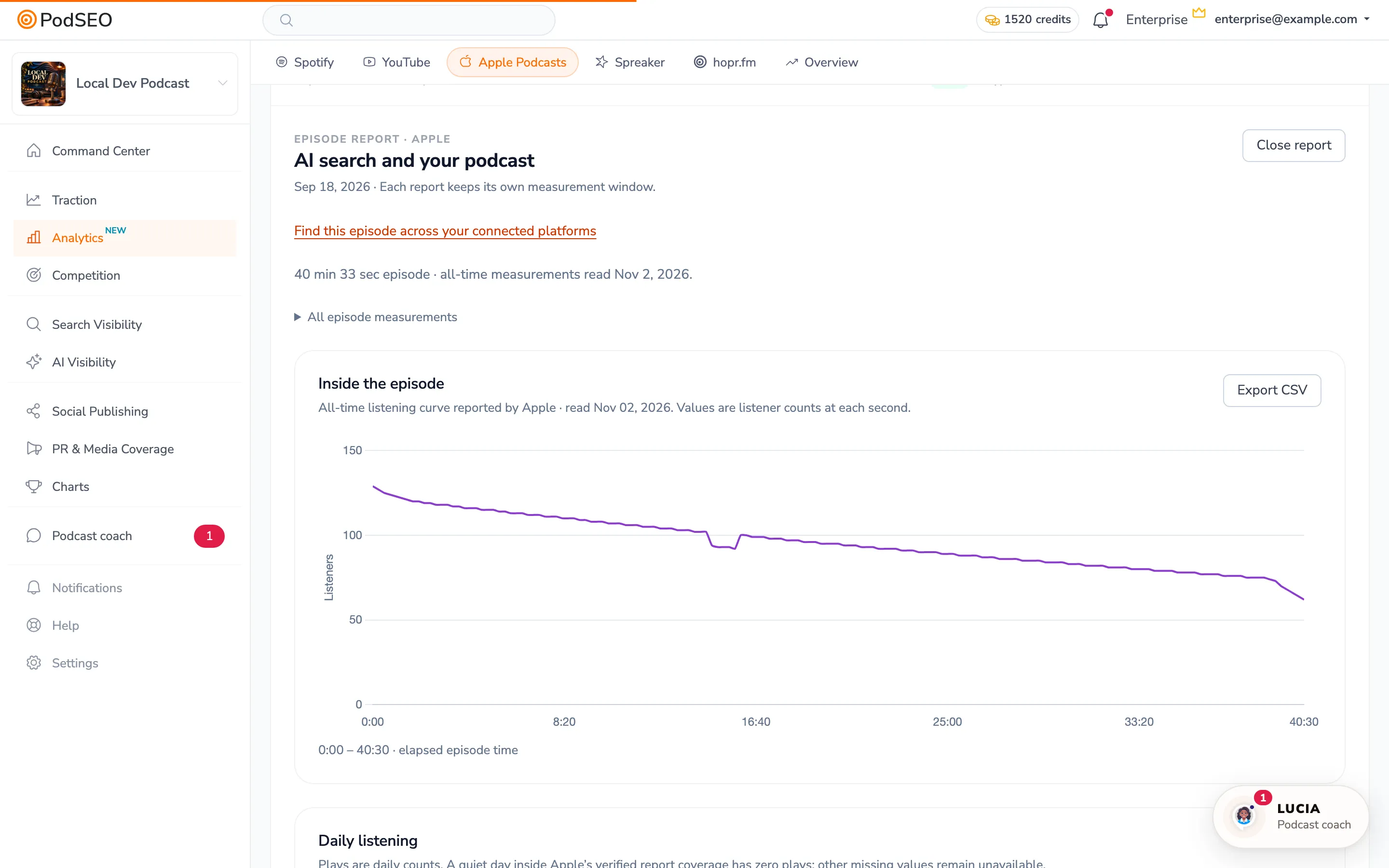
An Apple Podcasts episode report in PodSEO: the line shows how many people were still listening at each moment of the episode.
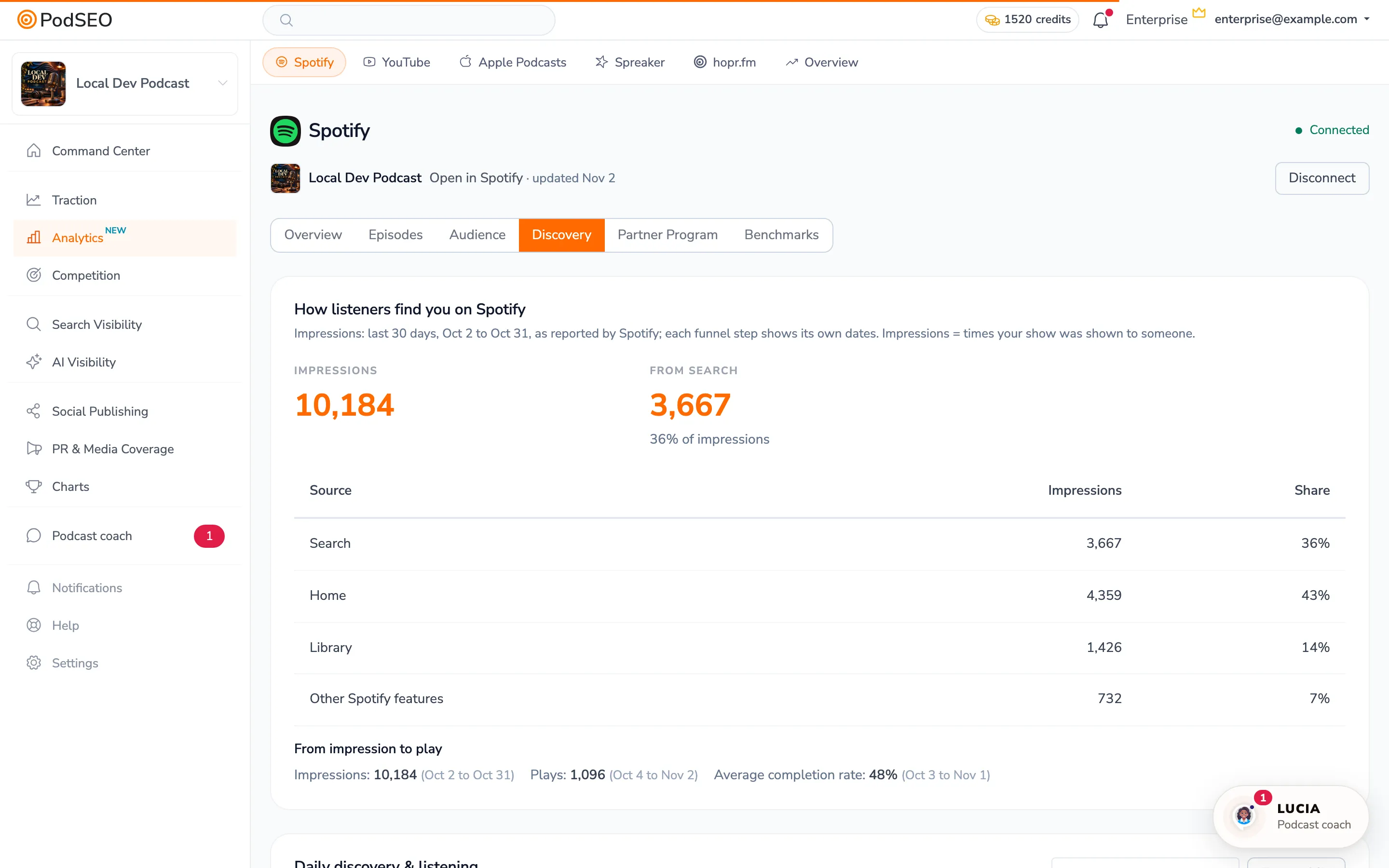
Spotify's Discovery report: how often the show was shown, where (Search, Home, Library), and how many of those views turned into plays.
A show that looks better on the platform itself
Claiming also unlocks the tools each platform reserves for show owners. They make your show more attractive where listeners actually decide what to play:
- On Apple Podcasts: upload extra artwork, such as Full Page Show Art (a tall version of your cover shown on your show page and in the player) and the wide artwork Apple asks for when you submit your show for featuring, check your show's status, and refresh the feed when a new episode is late to appear.
- On Spotify: manage your show page and use the interactive and promotional features Spotify offers to show owners in your region.
The details change as Apple and Spotify add features, but they have one thing in common: you can only use them on a show you've claimed.
Control over who can see your data
A claimed show has a team. You decide who joins it and with which role: a co-host, a producer, an agency, or a read-only service like PodSEO. Nobody else can see your listener data, and you can remove access at any time.
How to Claim Your Show
Claiming takes a few minutes per platform:
- Spotify: sign in to Spotify for Creators, choose Add a new show, then Find an existing show, and enter your RSS feed or your Spotify show link. Spotify emails a code to the address in your RSS feed. Don't create a new show or upload your episodes again: that makes a second, separate copy of your podcast.
- Apple Podcasts: sign in to Apple Podcasts Connect with your own Apple Account, use Claim Existing Show and paste your show's Apple link. Apple gives you a token that you paste in your host's settings.
Before you start, check that your RSS feed contains an email address you can read: it's where the platforms send their confirmation. Some hosts leave it out by default and have a setting to add it.
The full step-by-step instructions, including what to do if the show is already claimed or the code never arrives, are in Connect Your Analytics (Spotify) and the Apple section of the same guide.
Why Read It All in PodSEO
Once your show is claimed, each platform shows you its own dashboard, and your host shows you another one. Each answers a different question, and none of them shows the others' numbers. PodSEO brings them together in Analytics:
- Server-side downloads: your host's own statistics (Spreaker, Buzzsprout, Simplecast, Captivate, Transistor, Podigee), and downloads counted by a tracking prefix such as OP3 or hopr.fm. A prefix is a short address added in front of your episode links that counts each request before passing it on to your host. These numbers cover every app at once: Apple Podcasts, Spotify, Overcast, Pocket Casts and the rest.
- Client-side listening: plays, listeners, followers, audience and discovery as measured inside Apple Podcasts, Spotify and YouTube (for YouTube there's nothing to claim: you connect the channel you already own).
One prefix is enough: stacking several trackers on the same feed causes more problems than it solves (see Why Multiple Podcast Trackers Are a Recipe for Disaster).
Side by side, the two halves explain each other. Downloads tell you how far your episodes travel; plays, completion and discovery tell you who actually listened and how they found you. Podcast Analytics Decoded goes through which of these numbers matter most for being found. In Analytics → Overview → Timeline, every connected source sits on the same calendar, next to your releases and changes to your show, each on its own scale. PodSEO never adds the numbers together, because each platform counts something different.
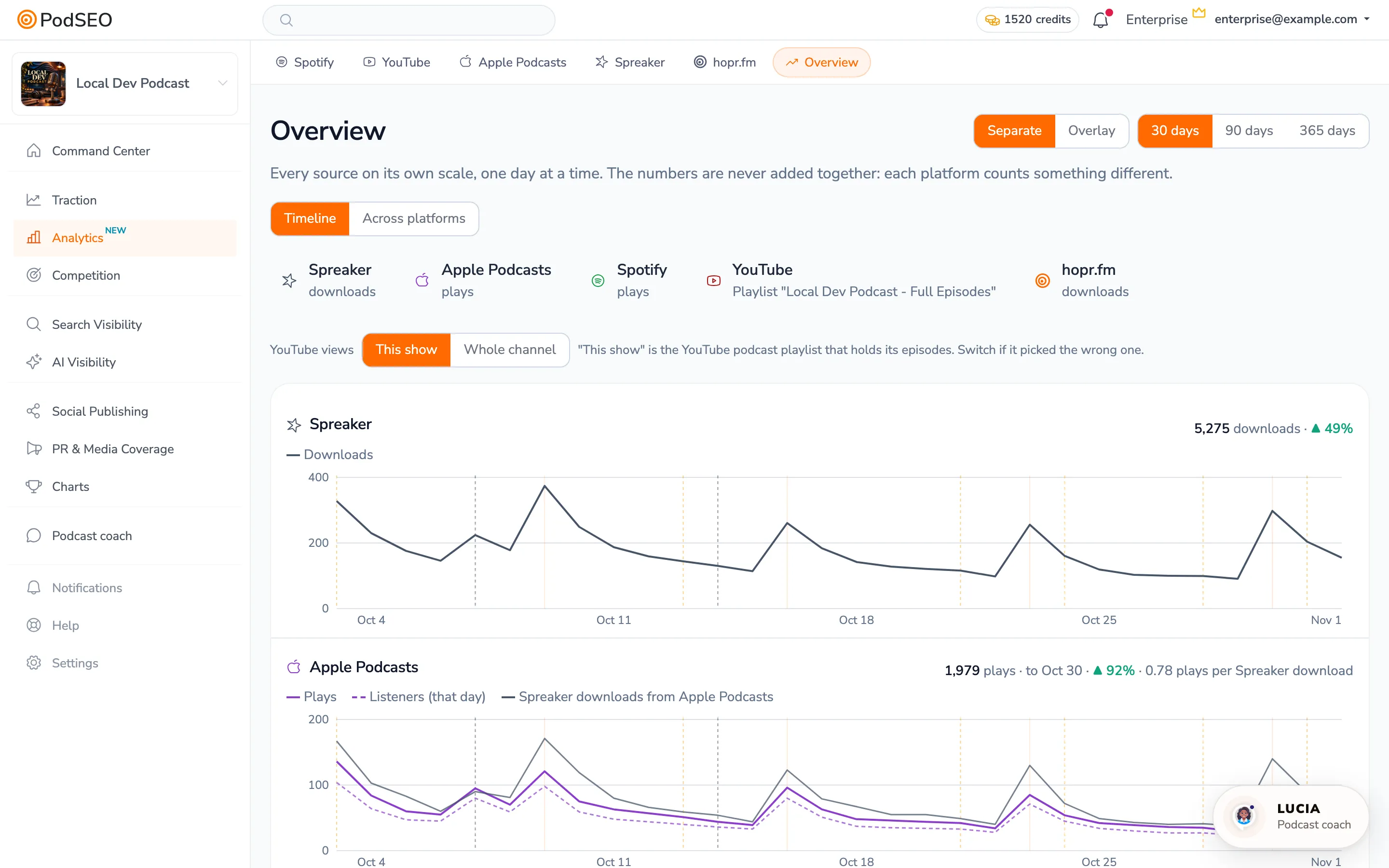
Analytics → Overview: host downloads, Apple Podcasts and Spotify plays, YouTube views and hopr.fm downloads on one timeline.
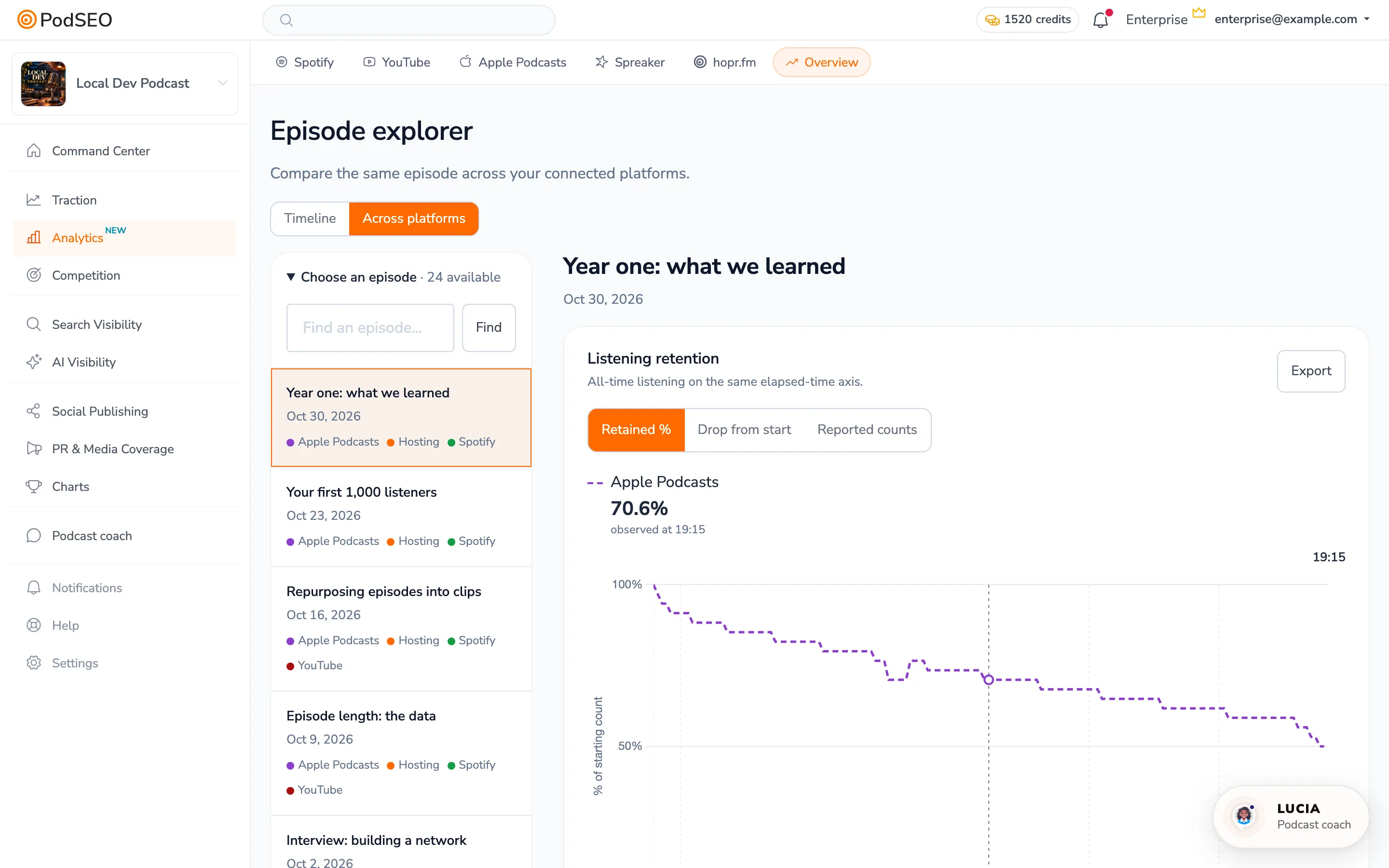
In Analytics → Overview → Across platforms, you can pick one episode and compare it across every connected source, including the listening curves from Apple and Spotify. And because it's all in the same place as your keyword rankings and show optimization, you can check whether a new title brought more Search impressions on Spotify, not just more downloads.
Common Questions
Will claiming change anything for my listeners or my host? No. The show stays hosted where it is, the feed stays the same, and your episodes keep appearing as before. Claiming only adds you as the owner on the platform.
I already submitted through my host. Do I need to submit again? No, and please don't. Claim the existing show instead. Submitting or uploading again creates a duplicate show that splits your listeners and your rankings.
Does PodSEO get control of my show? No. On Spotify you invite PodSEO with Analytics: Reader and everything else on No access; on Apple with the Analyst role. Both are read-only: PodSEO can see numbers, never change your show.
Is claiming free? Yes, on both platforms.
Next Steps
- Check your RSS feed has an email you can read.
- Claim your show on Spotify for Creators and Apple Podcasts Connect.
- In PodSEO, open Analytics, pick Spotify or Apple Podcasts, and follow the connection steps. Your host's numbers, a tracking prefix and YouTube can be connected from the same page.
New to PodSEO? See what Analytics shows once your sources are connected.