
Connect Megaphone
If your podcast is hosted on Megaphone, you can bring its downloads into PodSEO. Megaphone has no sign-in or API token you can hand to another app, so the connection works by invitation: you invite PodSEO to your Megaphone organization as a read-only user, and PodSEO reads the downloads of the show you connected. Once connected, your Megaphone downloads appear in Analytics next to your other sources, and refresh daily.
The connection is free on every plan. In an organization, only Admins and Owners can connect a source in PodSEO; other team members can view the numbers.
Before you start
- You need admin rights in Megaphone. Only an Organization Admin or a Network Admin can invite users. If you don't have that role, ask the person who manages your Megaphone organization to send the invite with the details PodSEO gives you.
- Know which network holds your show. In Megaphone, every show belongs to a network. You'll give PodSEO access to that network.
- Keep PodSEO open in another tab. You'll copy three values from PodSEO into Megaphone's invite form.
Step 1: Get your code in PodSEO
- Choose your podcast, open Analytics and select the Megaphone tab.
- Click Connect Megaphone.
PodSEO shows a 6-character code, with the first name and email address to use in the invite. Each value has a Copy button. The code tells PodSEO which show and which PodSEO account the invite is for, so type it exactly as shown.
The code can be used once and is valid for 30 days. If it expires before PodSEO receives an invite, the page shows Get a new code: click it and use the new code instead.
Step 2: Open the users page in Megaphone
Sign in to Megaphone with an Organization Admin or Network Admin account, open Users (from Settings, or directly from the left menu) and click Invite User.

The Invite User form opens, with empty user details.
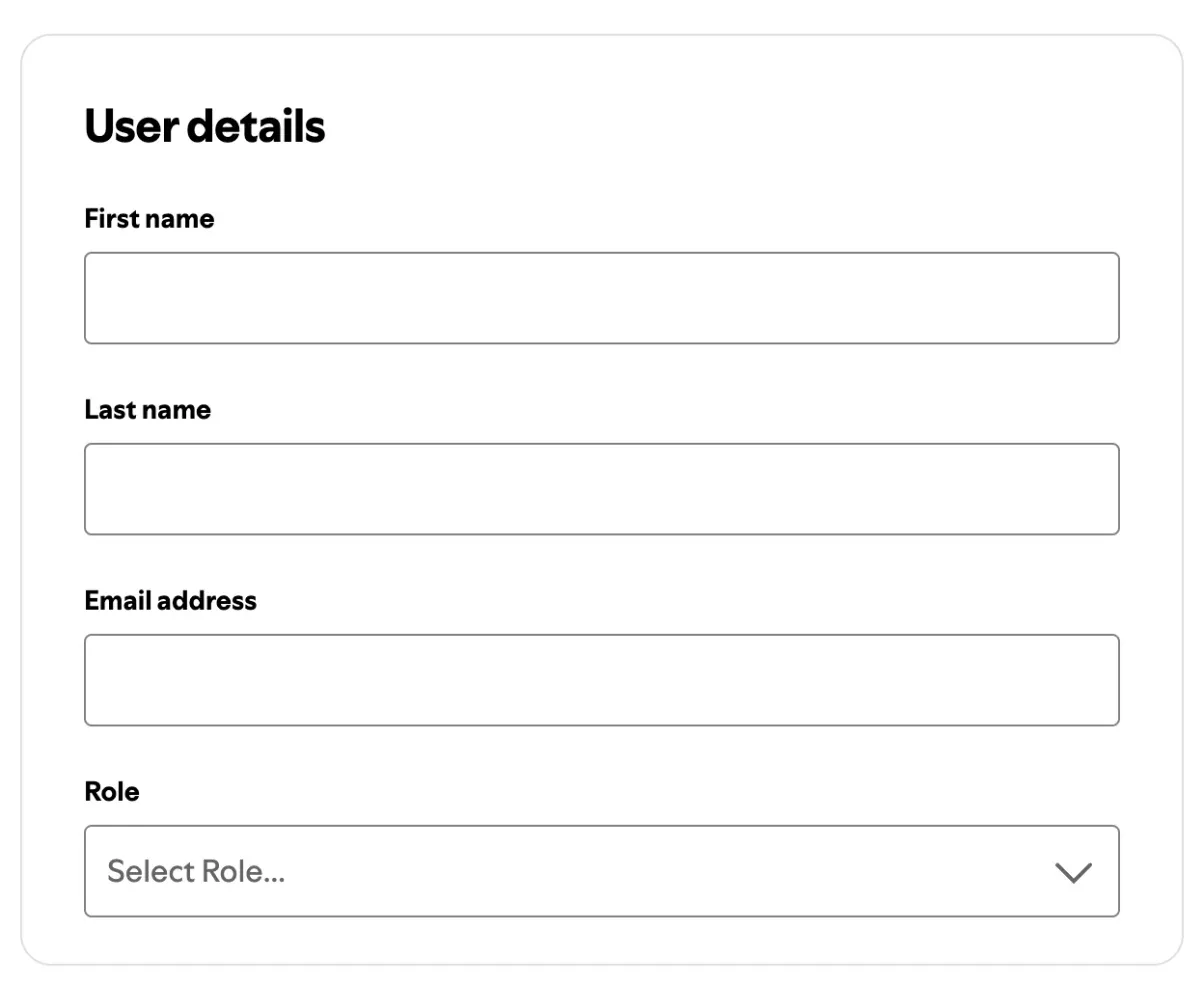
Step 3: Fill in the name and email
Copy each value from PodSEO:
| Megaphone field | What to enter |
|---|---|
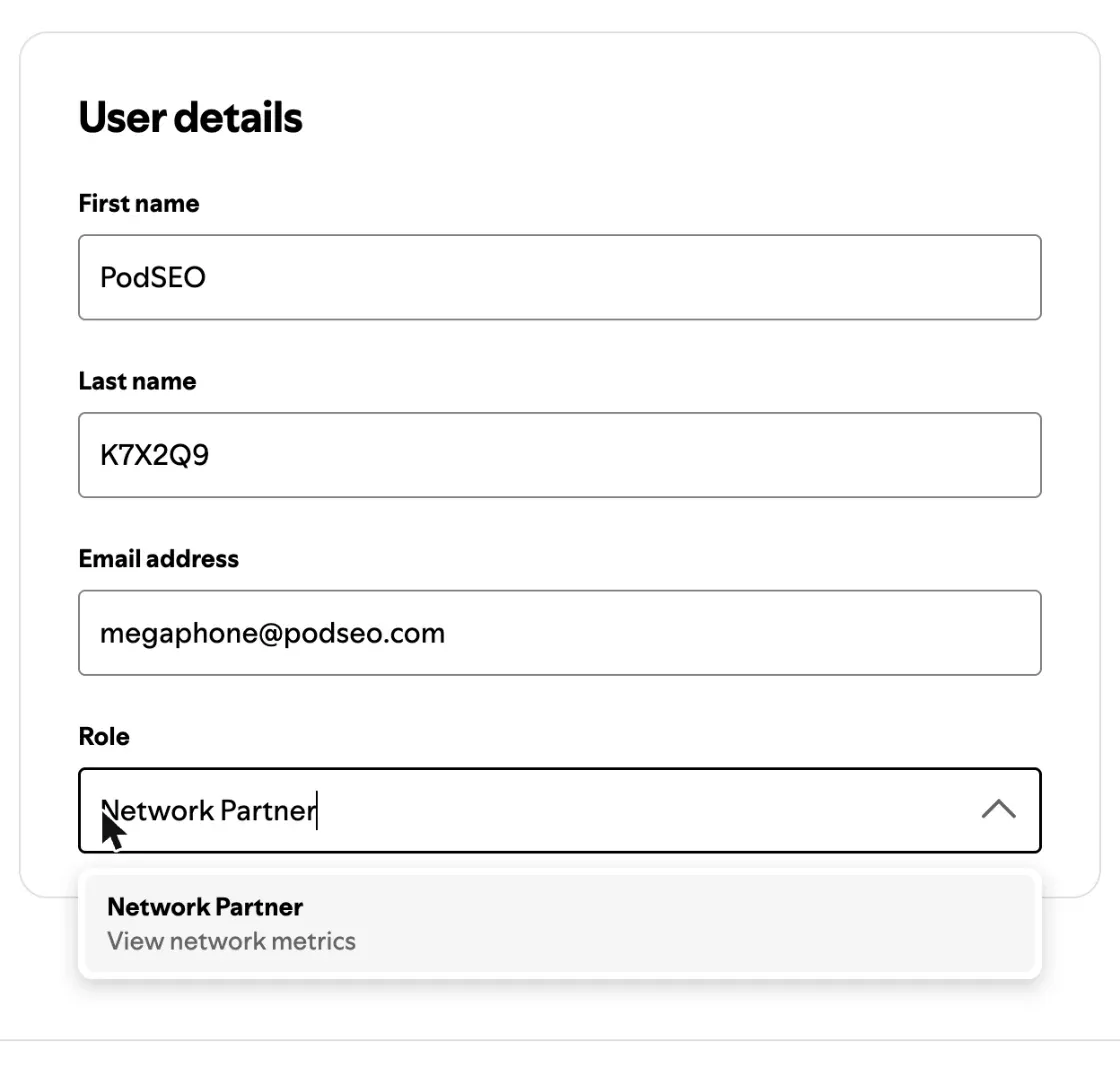
| First name | PodSEO |
| Last name | Your 6-character code from PodSEO (for example K7X2Q9) |
| Email address | [email protected] |
The code goes in Last name, not in the email address. PodSEO matches the invite to your request through it.
Step 4: Choose Network Partner and the network
- In Role, choose Network Partner. Megaphone describes it as View network metrics: it can read reports and cannot change anything.
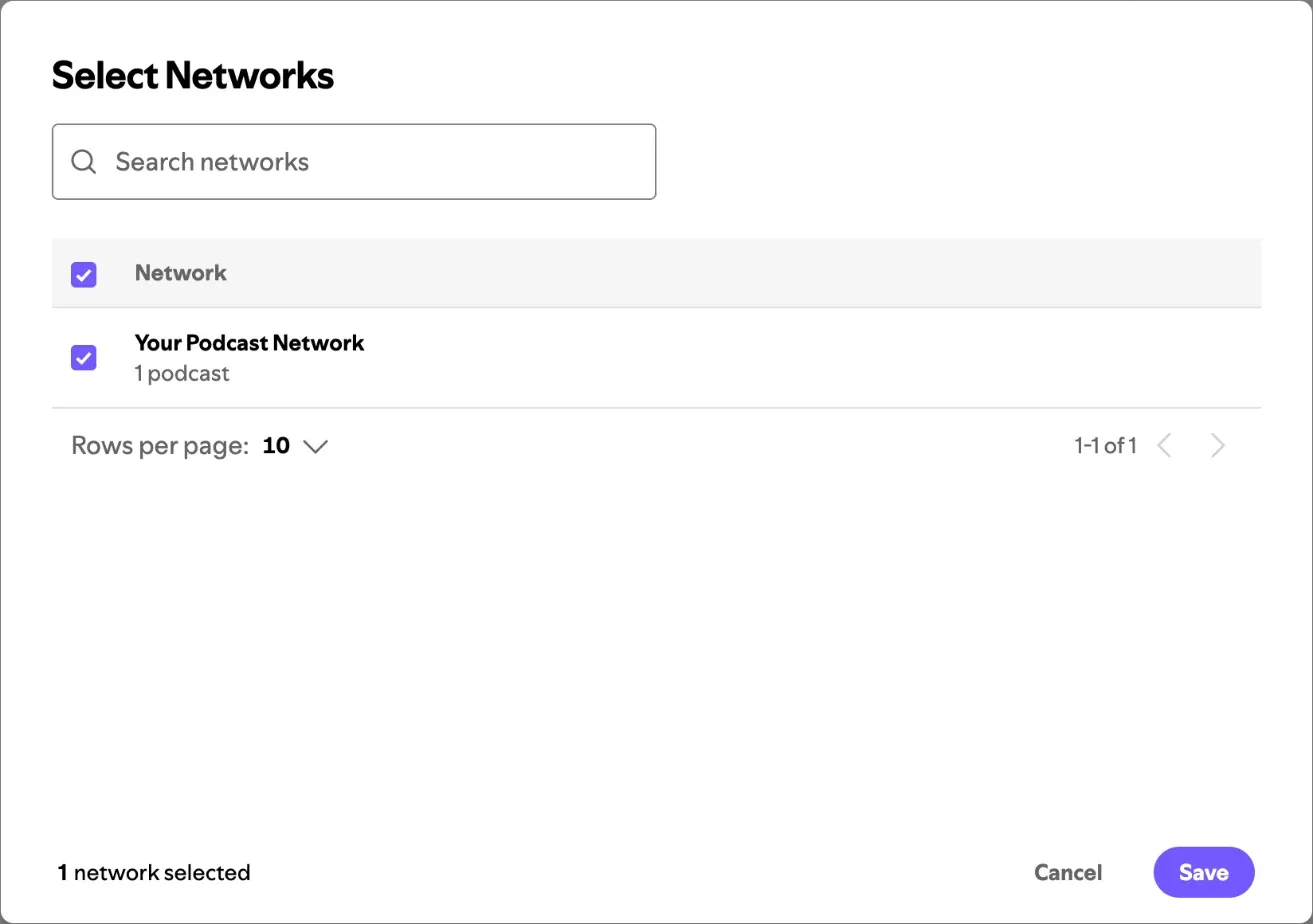
- Click Assign Networks, tick the network that holds your show and click Save.
- Check the form: first name, last name (your code), email, role Network Partner and the network you assigned. Then click Invite.
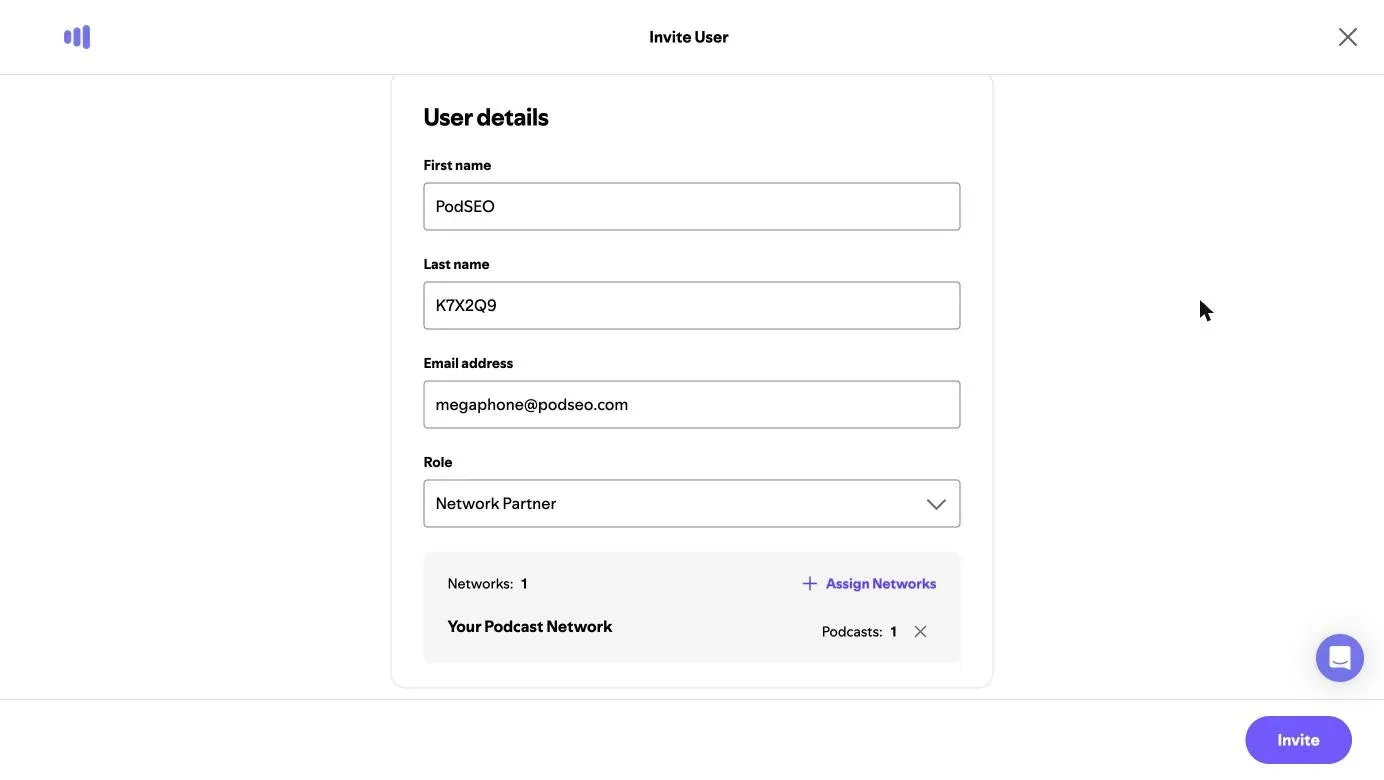
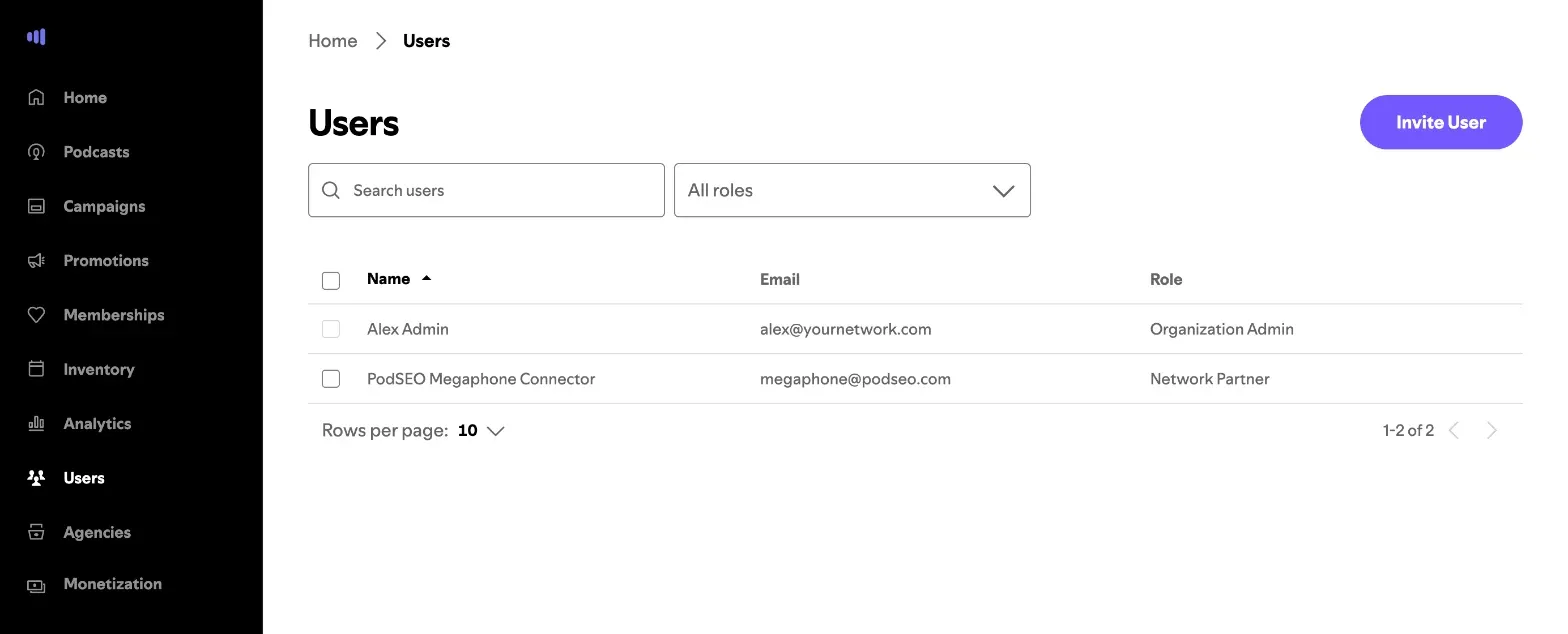
PodSEO now appears in your Megaphone users list with the role Network Partner. Its name in the list can differ from the one you typed.
Step 5: Tell PodSEO you sent the invite
Back in PodSEO, click I've sent the invite. You can leave the page: PodSEO checks for new invitations every 10 minutes.
When the invite arrives, PodSEO confirms that the show you connected is in the network you shared. The status changes to Confirming your Megaphone connection; if a person needs to confirm it, our team does and emails you. Your downloads appear after the first import, then update daily. See Hosting platform reports to read them.
What PodSEO can see
A Network Partner in Megaphone can see the reports of every show in the networks you assigned. PodSEO reads only the shows that PodSEO users connect, and only their download statistics. It never publishes, edits or deletes anything in Megaphone: the role doesn't allow it, and PodSEO doesn't try.
If your network holds several shows and you want to connect another one, start from that show's Megaphone tab in PodSEO.
Troubleshooting
The Megaphone tab is missing. Check that you selected the right podcast. The tab appears for shows whose feed PodSEO recognises as hosted on Megaphone.
My code expired. Codes last 30 days and work once. Click Get a new code and send a new invite with it as the Last name.
I invited the wrong network or typed the code wrong. Remove [email protected] from your Megaphone users, then send a new invite with the correct details. If your code has been used or has expired, get a new one first.
PodSEO says Megaphone no longer accepts the connection. This happens when [email protected] was removed from your Megaphone users, or the show left your Megaphone organization. Click Invite PodSEO again and follow the steps with the new code. Numbers already shown keep their original dates.
The invite was sent days ago and nothing changed. Contact support with the show's name and your Megaphone network's name. Never send your Megaphone password.
How to disconnect
- In PodSEO, open Settings → Connections, expand Megaphone for the correct show and choose Disconnect…. PodSEO stops reading your downloads. Your Megaphone numbers no longer show anywhere in PodSEO; PodSEO keeps them for when you reconnect.
- In Megaphone, open Users and remove
[email protected]. This ends PodSEO's access to your organization.
If PodSEO reads several shows in the same network for you, removing [email protected] in Megaphone stops all of them.
Related guides
- Connect your analytics: every source you can connect, and how to manage them
- Hosting platform reports: read your host's downloads, episodes and audience
- Reading Analytics: compare Megaphone downloads with Apple, Spotify and YouTube